Using hypercal
For people using a hypercal someone else is running, or the standalone Android app. If you want to run the server yourself, see Self-hosting.
This part is for people whose calendar is already deployed and who just want to use it from a browser or phone.
Accounts & sign-in
hypercal has its own login screen — no external SSO. On first visit you either register (username + password) or sign in. From the account menu you can then add:
- a passkey — Face ID / fingerprint / device PIN via WebAuthn, for password-free sign-in;
- two-factor authentication — a TOTP code from any authenticator app, with a set of single-use recovery codes to print or store;
- app passwords — separate revocable credentials for connecting CalDAV clients (see Connecting CalDAV clients).
The account menu in the top bar is also where you set an avatar, manage your profile, and sign out. If you'd rather not appear when other users on the instance search for someone to invite, you can hide yourself from the user picker.
Installing the app (PWA)
hypercal is installable as a Progressive Web App, which gives it its own window, an app icon, and offline support.
- Android Chrome: open the site, then use the ⋮ menu → "Install app" (or the install prompt that appears). The app then launches full-screen from your home screen.
- Desktop Chrome/Edge: click the install icon in the address bar.
- Installation only works over HTTPS (or
localhost); browsers refuse to register service workers on plain HTTP.
After an update, a small toast offers a "Reload" button to switch to the new version.
Features
- Views — week, day, month, year and a schedule (agenda) list, with a view switcher and quick navigation between periods. Week is the default; you can change that in settings. In the week and day grids, tap/click an empty slot to create an event; drag to move; drag the edges to resize. Every gesture works with both mouse and touch, including dragging across day boundaries.
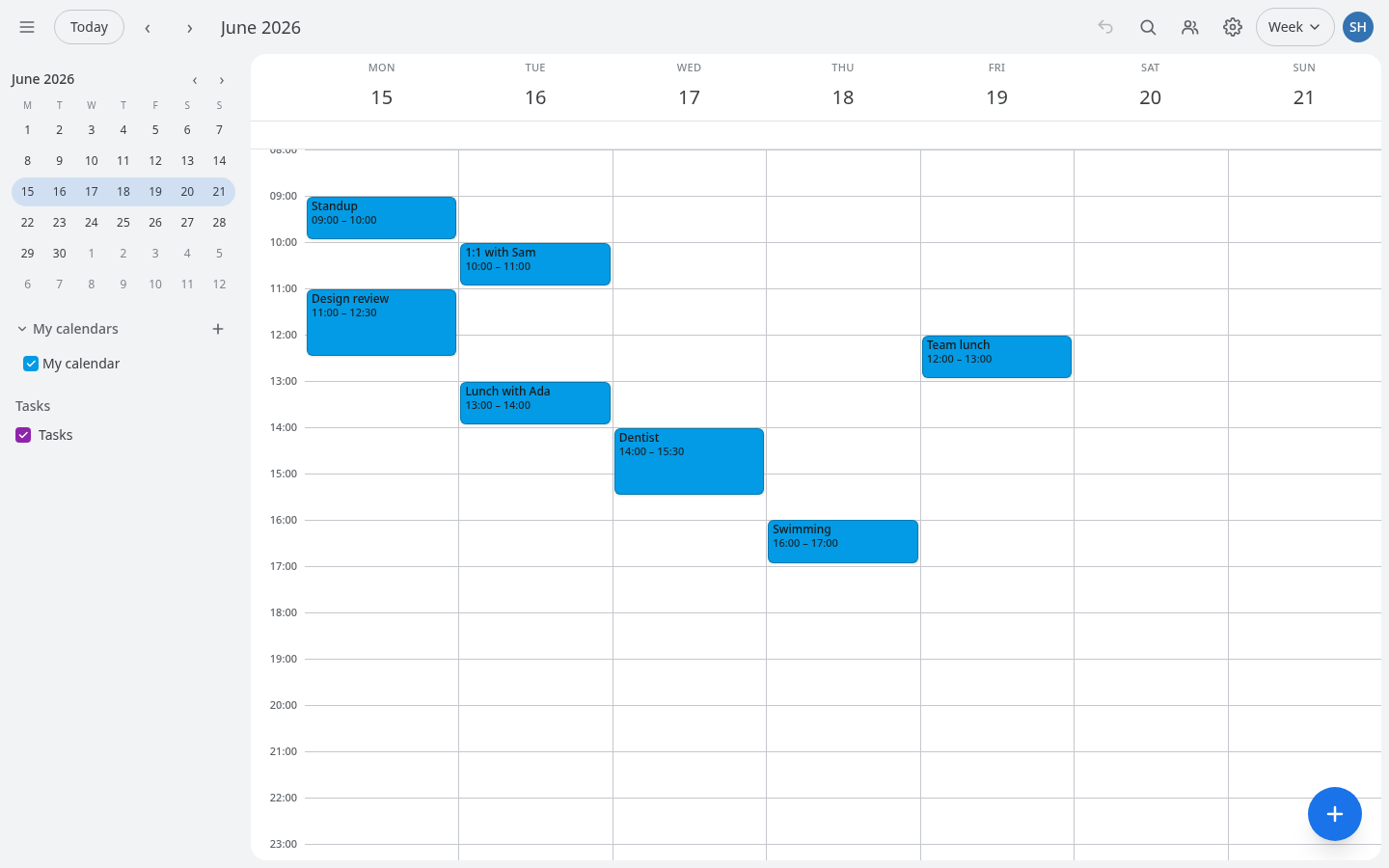
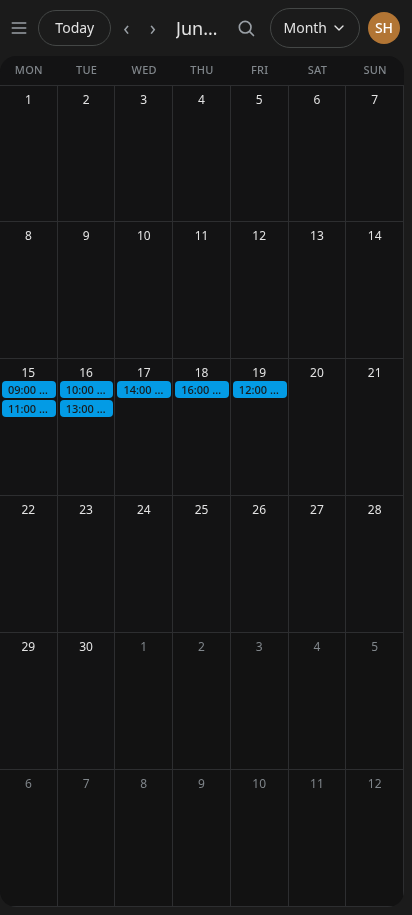
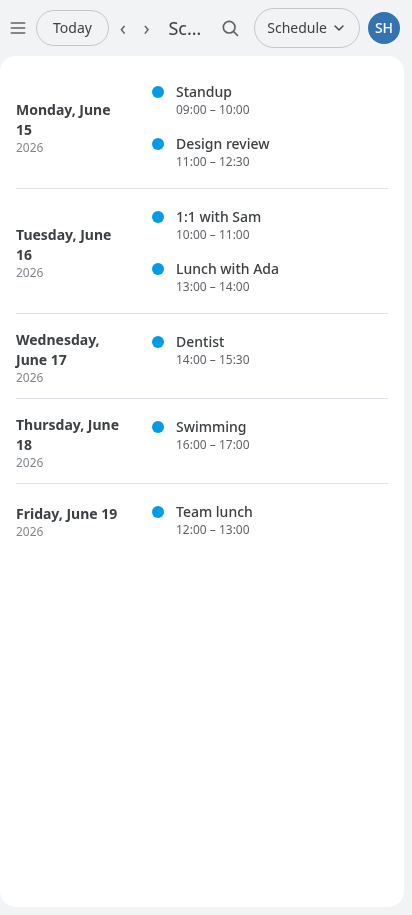
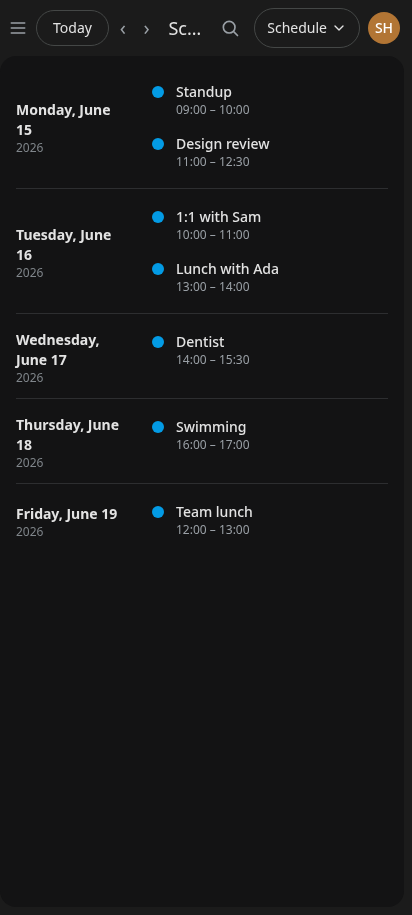
- On a phone — the same calendar, sized for a narrow screen.
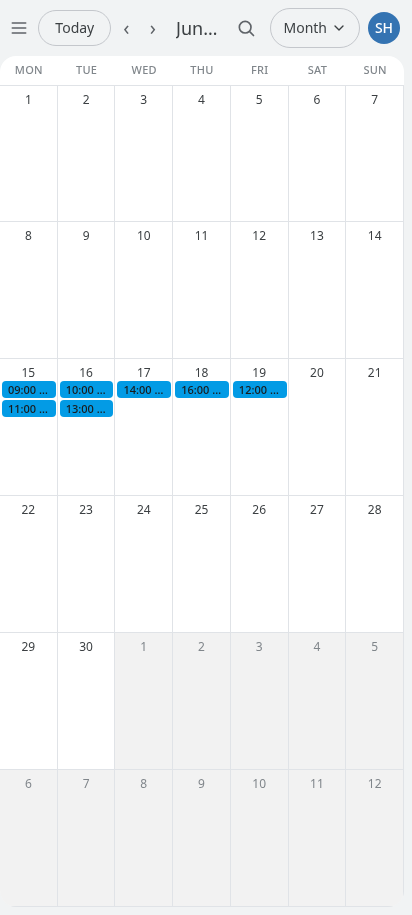
- Recurring events — daily/weekly/monthly/yearly repeats; editing a repeating event asks whether to change just this occurrence or the whole series.
- Reminders — per-event reminders with per-calendar and global defaults, delivered as push notifications (see Notifications).
- Tasks — lightweight to-dos that live alongside events.
- Multiple calendars — group events into color-coded calendars you can show or hide.
- ICS subscriptions — subscribe to external
.icscalendar feeds (holidays, sports schedules, etc.), refreshed automatically. - CalDAV, both directions — other apps (Thunderbird, Apple Calendar, DAVx5) can read and write your calendars over the built-in CalDAV server, and a calendar can also be linked to a remote CalDAV collection on Nextcloud, Radicale or Fastmail and kept in step two ways.
- End-to-end encryption — mark a calendar encrypted and its titles, descriptions, locations and attachments are encrypted in your browser; the server stores only ciphertext. The key is derived from your login password, which the server does receive at sign-in, so this protects a stolen disk or a leaked backup rather than a compromised server — it is not zero-knowledge. Times, attendees and calendar names stay unencrypted, and search works by sending a scrambled index that leaks some statistical information about your event text. The security model sets out both limits in full.
- Sharing & collaboration — invite guests to events, collect RSVPs, and use the "find a time" overlay to see opaque free/busy across people without exposing their event details.
- Import & export —
.icsin and out, plus a native.hypercalendarfile that round-trips everything the ICS format can't carry. - Attachments & links — attach files to events; URLs and addresses in event text become clickable (addresses open in maps).
- Search — find events across your calendars.
- Voice entry — the mic button transcribes speech into a new event entirely on-device (offline Vosk model, no API keys). If the model isn't installed the app still works normally and the mic just reports it couldn't load.
- Weather — the thermometer button in the toolbar lays an hourly forecast over the week (and day) grid: temperature, rainfall and how likely it is, a high/low per day, and DWD severe-weather warnings. The calendar fades behind it and comes straight back when you close it again. Nothing is shown or fetched until you press the button, and it starts closed every time you open the app. Set a location first in Settings → Weather, either as coordinates or by pasting a Google Maps or OpenStreetMap link. The data comes from Deutscher Wetterdienst via Bright Sky, so it covers Germany only.
- Trash — deleted events go to a recoverable trash before they're gone.
- Keyboard shortcuts — press
?for the cheat sheet; shortcuts are customizable in Settings.
Theming
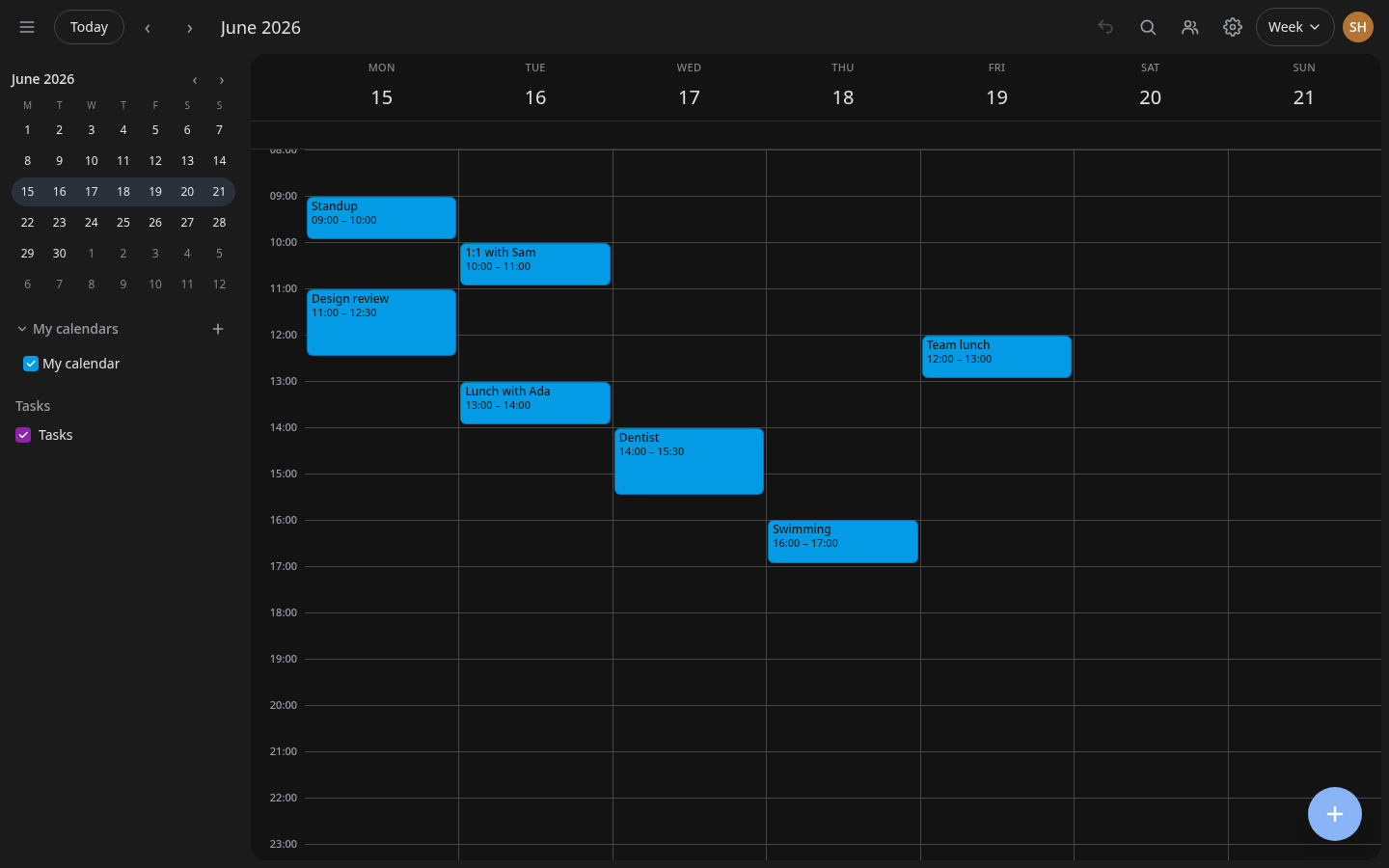
Settings → Appearance. Three built-in themes:
| Theme | What it is |
|---|---|
| Dark | The default. Neutral greys, a blue accent. |
| Light | White surface, Google-ish greys, the same blue accent. |
| Blacksite | Carbon ground, one red accent, squared corners and monospace type. Destructive actions are pushed off the accent so Delete still reads as Delete. |
Which theme you use is per device, so a phone can sit on Blacksite while a desktop stays Light.
Making your own
Pick Custom. It is a layer, not a blank page: choose which built-in theme to start from, then override only what you want.
- Colours — one picker per semantic token (surface, borders, text, accent and so on). Anything you leave alone comes from the theme you started from, and each row has a Reset that puts it back.
- Custom CSS — a free-form stylesheet, applied after the app's own styles. Up to 16 KiB. Scope rules with
html[data-custom]if you need to outweigh a built-in style.
Edits preview immediately but only Save writes them. Your custom theme is stored on your account, so it follows you to every device you sign in on; the last device to save wins.
Two things it cannot do, both because of the app's Content-Security-Policy: load a webfont or an image from another site. Everything must be data: or served from your own instance.
Locked out by your own CSS
If you write something that hides the app, you cannot reach Settings to undo it. Open the app with ?safemode=1 on the end of the URL:
https://your-instance/?safemode=1That loads it with your custom CSS switched off. The editor still works, so you can fix the rule or press Reset theme.
Offline behavior
- The app shell is precached, so it opens offline.
- Recently viewed weeks render offline (
GET /api/eventsuses a network-first strategy with a short timeout). - Changes you make offline are queued locally and synced when you reconnect. If the same event changed on the server in the meantime, a conflict prompt lets you resolve it field by field.
Notifications
Reminders are delivered via Web Push, so they fire on desktop and on the installed Android PWA even when the app is closed. Enable them per device from Settings → Notifications (this asks for browser permission and registers the device). Push requires a secure origin (HTTPS or localhost), and on iOS the app must be installed to the Home Screen (iOS 16.4+) first. If the server operator hasn't configured push, the toggle reports that it's unavailable.
Version, and reporting a problem
The account menu → About shows the version you're running, which build of the Android app it is, and which of the three deployment modes you're in. That last one matters more than it sounds: the modes are different backends running the same code, so a bug in one often doesn't exist in the others.
Send feedback, in the same menu, writes the report for you. Describe what happened, and it fills in the version, mode, browser, locale, timezone and window size — the details a report usually can't be reproduced without — then opens the issue tracker with all of it prefilled.
Two things to know before you use it:
- It opens your browser and needs a GitLab account. Nothing is sent by the app itself; you review the issue and submit it. The standalone Android app makes no network request of its own for this.
- The issue is public. The details are shown in an editable box before you go anywhere, so delete anything you'd rather not publish, and keep event titles, passwords and your server's address out of the description.
No GitLab account? Email the address in the README instead — that becomes a confidential ticket.
Security vulnerabilities go somewhere else entirely — see the security policy. Don't put them in a public issue.