
Install on Android
HyperCloud on Android is a family of apps. Install the ones you use.
| App | What it is |
|---|---|
| HyperCloud Calendar | Calendar and tasks. Works on its own or with a server. |
| HyperCloud Contacts | Your address book. Works on its own or with a server. |
| HyperCloud Files | Your files on a server, and folder sync. Needs a server. |
| HyperCloud Finance | Shared expenses. Works on its own, with a link, or with a server. |
| HyperCloud Wellbeing | Drinks, food, training, weight and sleep. Works on its own or with a server. |
| HyperCloud | The account: sign in once, and the other apps use it. |
Install from the F-Droid repository (recommended)
You get updates like any other F-Droid app.
Install F-Droid if you have not already.
Open Settings → Repositories → + and enter:
https://hyper-calendar-7b58b2.gitlab.io/fdroid/repo?fingerprint=cc43554eefeaa63fe9b6bf36a9b991c685230f7851cfd49063f7df5e79f10769Or, if you are reading this on a computer, tap Add repository → scan QR code in F-Droid and point the phone at this:
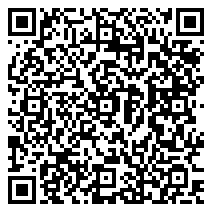
It encodes exactly the URL above, fingerprint included, so a scan pins the key the same way typing it does.
Search for HyperCloud and install the apps you want.
F-Droid pins the fingerprint when you add the repository and refuses an index signed by any other key.
Or download the APKs
Every release carries the signed APKs, two per app: most phones (arm64) is the smaller download, and every device runs anywhere the apps do. They are signed with the same key as the F-Droid repository, so you can move between the two whenever a newer version is out. You will not get update notifications this way.
A beta channel has its own repository, shown on the beta site's install page. It also carries releases, so it always offers the newest version.
With a server
Install HyperCloud and sign in there once: it shows a code, and you approve it in your browser (Settings → Devices). Calendar, Contacts, Files, Finance and Wellbeing then offer Use your HyperCloud account. Signing out in HyperCloud, or unlinking the phone in your browser, signs all of them out.
Without a server, Calendar, Contacts and Wellbeing keep everything on the phone, with no account and no network. Finance can join a project from a shared link or QR code without an account, or keep a project on the phone and upload it to a server later.
Permissions
Each app asks only for what it uses, when it first needs it. Turning one off keeps the rest of the app working.
| App | Permission | Why |
|---|---|---|
| Calendar | Notifications, exact alarms | Reminders that ring on the minute |
| Run at startup | Reminders are set again after a restart | |
| Internet | Only for a server account or a subscribed feed | |
| Contacts | Contacts, sync settings | Show the phone's other address books, sync into them |
| Phone calls | Call a number directly (otherwise the dialler opens) | |
| Internet | Only for a server account or a CardDAV address book | |
| Files | Notifications | Upload progress |
| Storage (Android 9 and older) | Saving downloads | |
| Internet | The server | |
| Finance | Internet | Only for a server account or a shared link |
| Wellbeing | Notifications | The rest timer, weigh-in and sleep reminders |
| Run at startup | Reminders are set again after a restart | |
| Internet | Only for a server account or a food barcode lookup | |
| HyperCloud | Internet | Signing in to the server |